Article
Desktop Layout Ideas That Actually Save Time
The best desktop layout isn't the prettiest one. Windows and Mac layout ideas that cut the hunting and window-shuffling out of your day, plus the setting that protects your files.
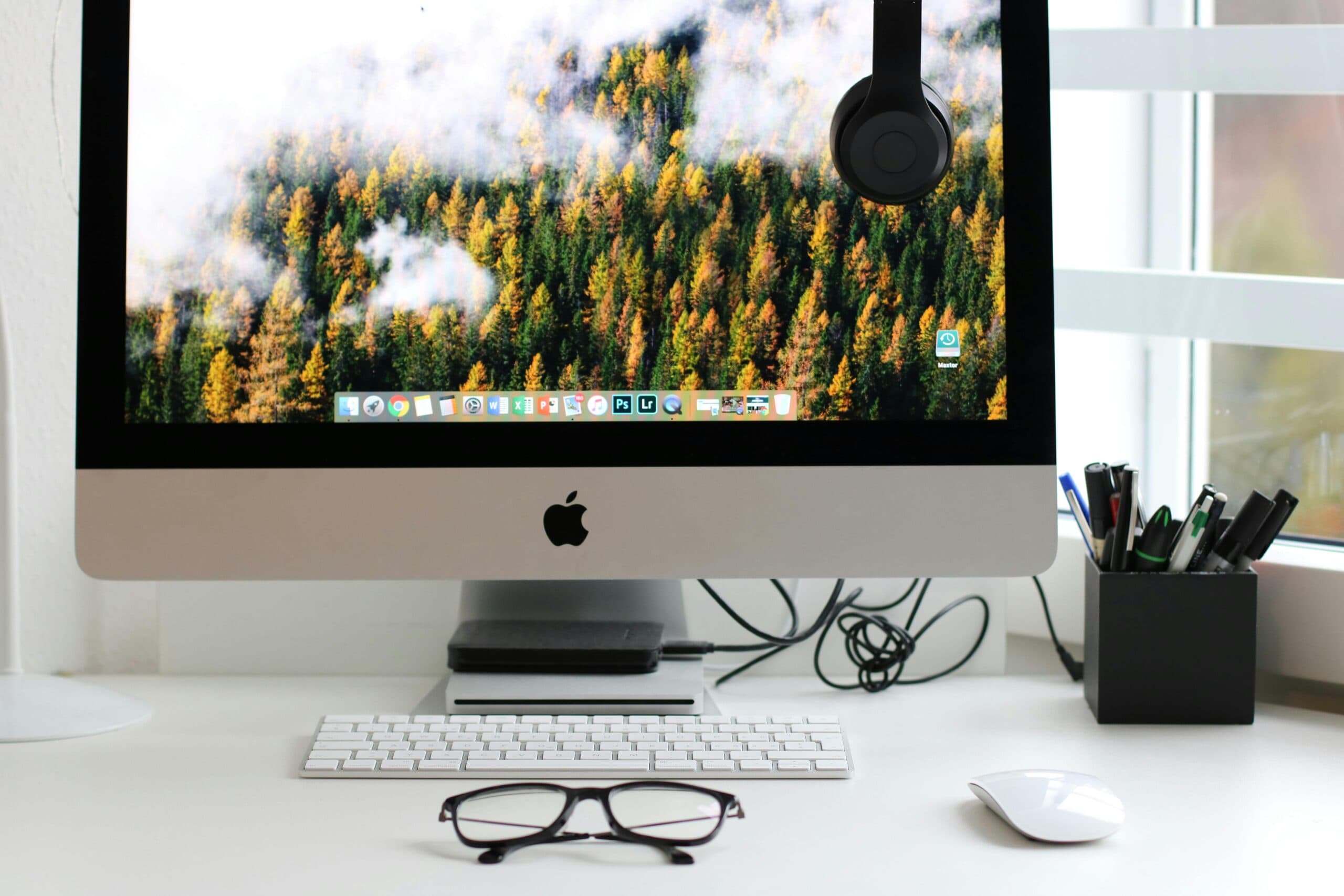
Most desktop layout advice is about wallpaper. That's fine, but a nice photo of a mountain has never once helped anyone find the spreadsheet they saved "somewhere" twenty minutes ago.
A good desktop layout is a time machine, in the boring sense: it gives you back minutes. So let's do the maths before the decorating. Say you spend two minutes hunting for a file or a window ten times a day. That's twenty minutes a day, about an hour and a half a week, and somewhere north of seventy hours a year. Nearly two working weeks, spent squinting at a taskbar. Multiply by a team of ten and you've lost a person.
The fixes below are ordered from "thirty seconds" to "worth an afternoon". Most are built into Windows 11 and macOS already.
1. Snap layouts: stop dragging windows around
If you only change one habit, make it this one. In Windows 11, hover over a window's maximise button or press Windows + Z, and you get a grid of layouts: halves, thirds, a big pane with two small ones. Pick a slot and Windows offers to fill the rest with your other open apps.
The underrated bit is snap groups. Once you've snapped, say, Outlook beside Teams, hovering over either on the taskbar brings the pair back together. You've built a workspace and Windows remembers it.
On a wide or ultrawide monitor, thirds are the sweet spot: email on the left, the thing you're working on in the middle, chat or reference on the right. If you run two screens, our guide to setting up dual monitors properly covers which screen should hold what.
2. Virtual desktops: one for each job, not one for everything
Most people run every app on a single desktop and then wonder why it feels chaotic. Virtual desktops give you separate rooms. Press Windows + Ctrl + D to create one, Windows + Ctrl + Left/Right to move between them, and Windows + Tab to see them all.
A layout that works for a lot of office staff:
- Desktop 1 — Communication: Outlook, Teams, calendar.
- Desktop 2 — Deep work: the document, spreadsheet or system you're actually paid to work in.
- Desktop 3 — Admin: the accounting package, browser tabs for suppliers, the stuff you batch on a Friday.
Windows 11 lets you give each desktop its own wallpaper, which sounds frivolous until you realise it's the fastest way to know which room you're in. On a Mac the same idea lives in Mission Control as Spaces; swipe up with three fingers to add one.
3. The taskbar is prime real estate. Treat it that way
Pin the six or seven apps you open every day and unpin everything else. Each pinned app gets a free keyboard shortcut: Windows + 1 opens the first pinned app, Windows + 2 the second, and so on. Put Outlook first and Windows + 1 becomes muscle memory within a week.
If the centred Windows 11 taskbar annoys you, go to Settings → Personalisation → Taskbar → Taskbar behaviours and set the alignment to left. It's not just nostalgia. A left-aligned Start button stays in the same place no matter how many apps are open, so your hand stops having to look for it.
4. Clear the desktop itself
Here's the uncomfortable truth about the desktop as a filing system: it's a pile, not a filing system. Forty icons in no order is just a messy desk you can't push to one side.
Try a three-folder rule. Inbox for things you've just downloaded, Working for the handful of files in progress this week, and nothing else. Everything finished gets filed into OneDrive or SharePoint where it belongs. If you can't bear to look at icons at all, right-click the desktop and untick View → Show desktop icons; Windows + D still shows you the desktop when you need it.
And use search instead of navigating. Press the Windows key and start typing a file name. Windows indexes your files so you don't have to remember where you put them, which is fortunate, because nobody does.
5. The setting that matters more than any of the above
This is the bit nobody thinks about until it's too late. Files saved to your desktop live on that one laptop. Spill a coffee, lose the bag at the airport, or have the SSD give up, and every one of them goes with it.
OneDrive's folder backup (Microsoft calls it Known Folder Move) quietly syncs your Desktop, Documents and Pictures to the cloud. Your layout stays exactly the same, but the files on it are now backed up and follow you to a new machine. For a business we switch this on for every user centrally through Microsoft 365, so nobody has to remember. If you're not sure what's actually protected, our article on backup that works when you need it explains the gaps.
6. Widgets and focus: keep what helps, hide what nags
Windows widgets (Windows + W) can show your calendar, to-do list and weather at a glance. They can also show you celebrity news. Open the widget board, remove the news feed, and keep only what you'd otherwise open an app for.
Then try Focus, under Settings → System → Focus. It starts a timer, turns on Do Not Disturb, and stops taskbar apps flashing at you. Twenty-five minutes without a notification is a surprisingly radical experience in most offices.
7. For power users: custom zones and shortcuts
If the built-in snap layouts don't quite fit your screen, Microsoft's free PowerToys utility includes FancyZones, which lets you draw your own layout, such as a tall narrow column for chat and a wide pane for everything else. It's the closest thing to a tailored suit for your monitor.
A few more shortcuts that pay for themselves within a day:
- Windows + V — clipboard history, so you can paste something you copied five copies ago.
- Windows + Shift + S — snip a region of the screen.
- Windows + L — lock the screen when you walk away. Not a layout tip, strictly, but it's the one your IT provider will thank you for.
Mac users get the equivalent from Stage Manager, which groups windows by task down the side of the screen, and Hot Corners, which trigger Mission Control or lock the screen when you flick the mouse into a corner.
What a good layout looks like
A tidy desktop with a beautiful wallpaper and nothing else running is a screenshot, not a workspace. The test of a good desktop layout is simpler: can you get to any app, file or window you need in two seconds without thinking about it? If the answer is yes, you're done. If it isn't, start with snap layouts and the taskbar, because those two changes deliver most of the benefit.
For more ways to claw back time from your computer, read set up your computer to stop losing time.
Frequently asked questions
What is the best desktop layout for work?
For most people it's snap layouts in thirds on one wide screen (or halves across two), with the six or seven daily apps pinned to a left-aligned taskbar and separate virtual desktops for communication and focused work. The best layout is the one that gets you to any window in two seconds.
How do I change my desktop layout in Windows 11?
Press Windows + Z to choose a snap layout, Windows + Ctrl + D to create a virtual desktop, and go to Settings → Personalisation → Taskbar to change taskbar alignment and pinned apps. Right-click the desktop and use the View menu to sort or hide icons.
Are files on my desktop backed up?
Not by default. Desktop files sit only on that computer unless OneDrive folder backup (Known Folder Move) is switched on, which syncs your Desktop, Documents and Pictures to the cloud. In a business this can be enforced for every user through Microsoft 365.
Can I set up the same layout for my whole team?
Partly. Taskbar pins, Start menu layout, OneDrive backup and wallpaper can be managed centrally through Microsoft Intune, so new starters get a consistent, sensible setup on day one. Personal arrangements such as snap groups stay up to each user.
Local IT and cyber security support across NSW
Chewing IT runs managed IT and cyber security for small and mid-sized businesses from our Wyong and Hornsby offices, covering the Central Coast, Newcastle, Lake Macquarie and Hornsby.
Want every laptop in the office set up properly from day one? Talk to us about managed IT — consistent setups, backed-up desktops and fewer "where did my file go" calls.