Article
Dual Monitors, Set Up Properly
A second screen pays for itself in weeks — but only if it is positioned, scaled and configured correctly. Here is how to get it right in twenty minutes.
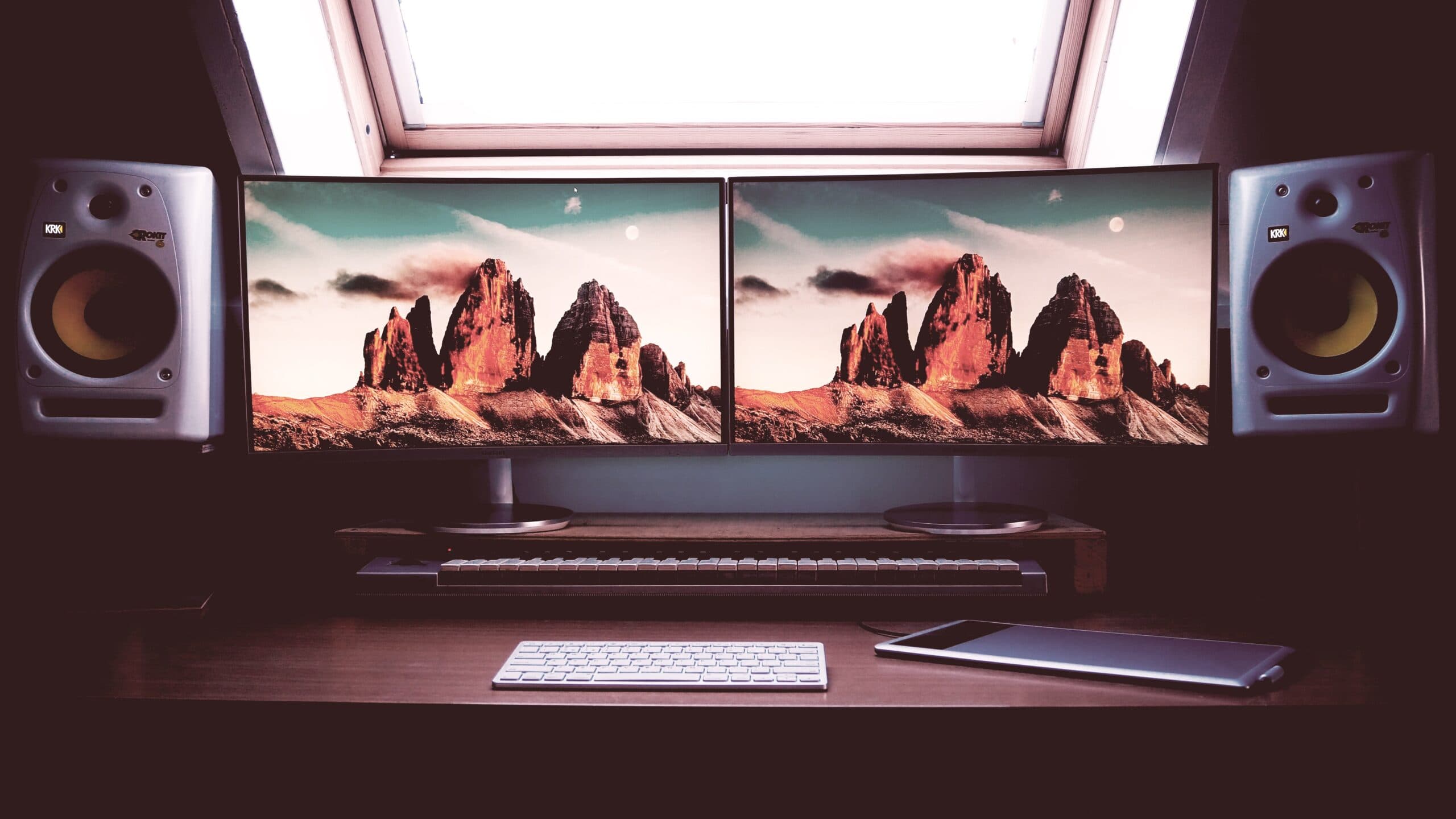
A second monitor is one of the few purchases where the productivity claim holds up. The research is unusually consistent, and the reason is simple: most office work involves referring to one thing while producing another. Doing that with alt-tab means holding the source in your head. Doing it with two screens means looking left.
But a badly configured second screen delivers a fraction of the benefit and a new neck complaint. The difference is about twenty minutes of setup that most people never do.
Get the physical position right first
This matters more than any software setting, and it is where nearly everyone goes wrong.
Decide whether you have a primary screen. If you spend eighty per cent of your time in one application, that screen goes directly in front of you and the second sits beside it at an angle. If your work genuinely splits evenly, centre the join between the two so you are not permanently turned to one side.
The common mistake is putting the main screen off to the left and the second one in front, so the user spends the entire day with their head rotated. Watch where someone actually looks for ten minutes and position accordingly.
Match the heights. Both screens should have their tops at roughly eye level. Two different monitors usually means two different stand heights, and the mismatch forces a small head movement on every glance. A $60 stand or a stack of reams fixes it.
Angle them inward. Slightly toward you, so both are square to your line of sight rather than viewed at an oblique angle. Shallow angles cause colour and contrast shifts on many panels.
Keep them the same distance away. Roughly an arm length. If one screen is closer, your eyes refocus every time you look across, which is a genuine source of end-of-day fatigue.
Tell the computer how they are arranged
In display settings, drag the monitor rectangles so they match the real-world layout — including the vertical offset if one sits higher. Get this wrong and the mouse leaves one screen and appears somewhere unexpected on the other, which produces a small hunt every single time.
Set the correct primary display as well. The primary is where the taskbar, notifications and most new windows appear, and having that on the wrong screen is a permanent low-grade irritation.
Sort out scaling before you blame the monitor
Mixing a 1080p screen with a 4K one and leaving scaling on defaults produces the classic complaint that text is huge on one and microscopic on the other.
Windows sets scaling per display. A 27-inch 4K panel usually wants 150 per cent; a 24-inch 1080p panel wants 100 per cent. Adjust each until physical text size matches across both. If an older application still renders blurry after a scaling change, sign out and back in — some apps only read the setting at launch.
Match brightness and colour temperature too. A noticeably cooler or brighter screen beside a warmer one makes the eyes adjust constantly.
Two shortcuts that make it worth having
Win + Shift + Left/Right moves the current window to the other monitor. This is the single most useful dual-screen shortcut and most people do not know it exists.
Win + Left/Right snaps a window to half of the current screen. Combined, the two let you place any window anywhere in about a second, which is what turns two screens from novelty into habit.
Decide what lives where
The gain comes from consistency. If the same kind of thing is always on the same screen, your hand and eye learn it and the searching stops.
A layout that works for most office roles: the document or application you are actively producing in on the primary screen, and the reference material — email, browser, spreadsheet, the PDF you are working from — on the second. For anyone monitoring something continuously, the thing being watched goes on the secondary screen and stays there.
What does not work is treating the second screen as overflow, where windows land at random. That is just a larger version of the mess.
The practical gotchas
- Check the laptop can drive both. Many business laptops output to two external displays over a single USB-C dock; some older ones will only mirror. Confirm before buying the second monitor.
- Use the best available connection. DisplayPort or HDMI over VGA, always. VGA is analogue and will look soft at any modern resolution.
- Cheap docks cause mysterious problems. Screens waking randomly, resolution dropping, one display dying on resume — a surprising proportion of dual-monitor support calls end at the dock.
- Consider a monitor arm. It frees desk space, makes height and angle adjustable in seconds, and removes the stack-of-books solution.
- Mind the privacy angle. A second screen is larger and more visible. In a reception area or open-plan space near a window, a privacy filter is worth the thirty dollars.
Is a second screen still the right answer?
For most roles, yes, and it is the cheapest productivity intervention available. A single ultrawide is a reasonable alternative if desk space is tight and you are comfortable managing window layouts, though it loses the physical separation that makes two screens easy to reason about.
What is rarely worth it is a third screen for general office work. The returns fall off sharply, and the neck movement increases.
If you are specifying hardware for a team, getting the docks and screens right the first time avoids a long tail of support calls — that is part of what our managed IT service covers, alongside the refresh planning in our guide to replacing ageing hardware.
Local IT and cyber security support across NSW
Chewing IT runs managed IT and cyber security for small and mid-sized businesses from our Wyong and Hornsby offices, covering the Central Coast, Newcastle, Lake Macquarie and Hornsby.
Rolling out new workstations? Talk to us about a standard desk setup that works the same on every desk.