Article
Best Cloud Storage to Save Device Space in 2026
Your phone is full again. Here's how cloud storage actually frees up device space — six providers compared with Australian pricing, plus the backup trap to avoid.
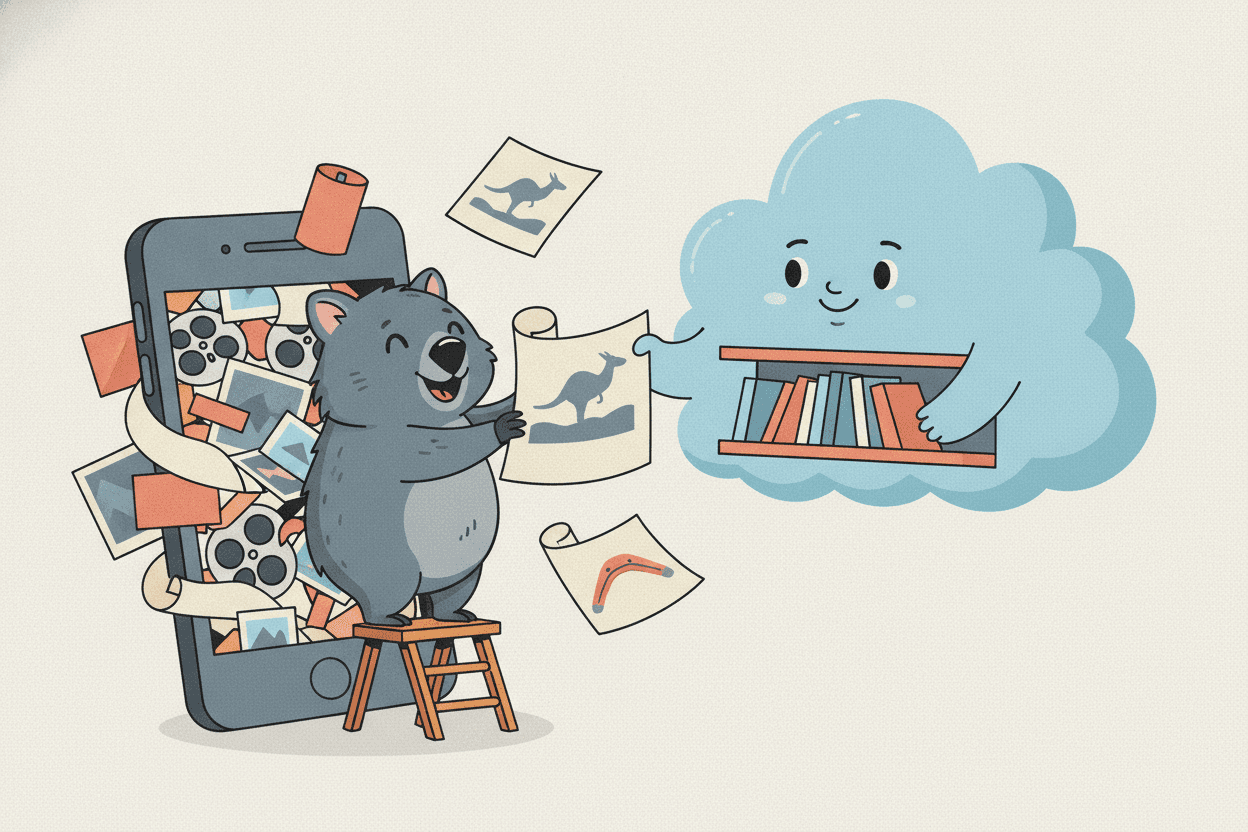
"Storage Almost Full." It's the notification that always arrives at the worst moment — halfway through filming the school concert, or just as you line up the 400th photo of the dog. So you delete three apps you forgot you had, cull a few blurry shots, and buy yourself a week. Then it's back.
Cloud storage is the real fix, and you almost certainly already have some. But here's the part most people miss: putting your files in the cloud doesn't free up any space on its own. Sync, by design, keeps a copy in both places — that's what "sync" means. To actually reclaim gigabytes you have to use each provider's offload feature, and every provider hides it somewhere different, under a different name. This guide covers the six best options for Australians, what they really cost in our dollars, and the exact settings that turn "my files are in the cloud" into "my phone has room to breathe".
Why your device fills up faster than you think
Blame the cameras. A modern phone photo runs about 2 MB — harmless on its own. Video is the killer: 4K at 30 frames per second chews through roughly 170 MB per minute. Film ten minutes of 4K a week — one school assembly, one beach afternoon — and that's 170 × 10 × 52, call it 90 GB a year, from casual filming alone.
Now look at the phone. A "128 GB" model hands maybe 100 GB to you after the operating system and your apps take their cut. Do the division and a completely ordinary family phone fills itself in about a year, no hoarding required. You were never careless with storage. The maths was simply against you from the day you unboxed it.
How cloud offloading actually works
The mechanism is worth thirty seconds, because once you see it, every provider's settings suddenly make sense.
When you turn on the space-saving mode, the provider uploads the full-size file, then quietly replaces your local copy with a lightweight stand-in — a thumbnail for photos, a "ghost" placeholder for documents. The stand-in might be 20 KB where the original was 200 MB. You still see every file, exactly where it always was. Tap one, and the full version streams back down on demand.
Same trick, six different names: Apple calls it Optimise Storage, Microsoft calls it Files On-Demand, Google Drive on the desktop calls it streaming (versus mirroring, which keeps full local copies and saves you nothing), Dropbox calls files online-only, and pCloud sidesteps the whole issue with a virtual drive that never lived on your disk in the first place. The label changes; the placeholder trick underneath doesn't.
The six best cloud storage providers for saving device space
Prices below were checked in July 2026 and rounded — plans shift, so treat them as close rather than gospel.
1. Google Drive — best if you live in Android or Gmail
Every Google account includes 15 GB free, shared across Drive, Gmail and Google Photos — the most generous mainstream free tier. The 100 GB plan costs about AU$2 a month; Google has folded its bigger tiers into AI subscription bundles, so the 2 TB price moves around — check the current plans page before committing. The device-space win is Google Photos' backup with "storage saver" quality plus its one-tap Free up space button, which deletes every local photo it has already backed up. On a computer, Drive for desktop offers streaming or mirroring — pick streaming, or you've gained nothing.
2. Microsoft OneDrive — best value for Windows and Office users
The free tier is a slim 5 GB, but the paid plans are the value story: Microsoft 365 Basic is AU$3 a month for 100 GB, and Microsoft 365 Personal is AU$159 a year for a full 1 TB plus the Office apps — Word, Excel, Outlook and the rest thrown in with the storage. OneDrive's Files On-Demand is built into Windows: right-click any file or folder and choose "Free up space", and it collapses to a placeholder. For businesses already on Microsoft 365, every user typically has 1 TB of OneDrive sitting there paid for — using it is free real estate.
3. Apple iCloud+ — best for iPhone, when you turn the right setting on
Apple gives you 5 GB free, which fills before you finish setting up the phone. The paid tiers are fair: AU$1.49 a month for 50 GB, AU$4.49 for 200 GB, AU$14.99 for 2 TB. The space-saver is Optimise iPhone Storage, which keeps small preview versions on the phone and full-resolution originals in iCloud — set-and-forget, and the phone manages itself from then on. For most families, the 200 GB tier is the sweet spot.
4. Dropbox — best cross-platform sharing, stingiest free tier
Dropbox pioneered consumer sync and it's still the smoothest for sharing big files across mixed Windows/Mac/Android/iPhone households. But the free tier is 2 GB — a rounding error in 2026 — and the Plus plan (2 TB) runs about AU$17 a month, or roughly AU$14 a month billed annually. The price is set in US dollars, so the AUD figure drifts with the exchange rate. Its space-saver marks files online-only from the desktop app's right-click menu.
5. pCloud — best one-off purchase instead of a subscription
The odd one out: pCloud sells lifetime plans — 2 TB for US$399, once, ever (and it's discounted more often than not). Against a AU$17-a-month subscription that breaks even in around three years, and pCloud has been around since 2013. You get up to 10 GB free, and its desktop app mounts a virtual drive that shows all your files while storing essentially none of them locally. The catch: it's a Swiss company billing in US dollars or euros, and there's no local Australian support to ring.
6. MEGA — best free tier going
MEGA hands out 20 GB free — quadruple iCloud, with end-to-end encryption on by default, meaning MEGA itself can't read your files. Paid plans (about AU$18 a month for 2 TB) are billed in euros. The encryption cuts both ways: lose your password and your recovery key, and nobody on Earth — including MEGA — can decrypt your data. That's the feature. It's also the risk.
Compare them at a glance
- Google Drive — 15 GB free; 100 GB about AU$2/month; best all-rounder for Android and Gmail users.
- Microsoft OneDrive — 5 GB free; 100 GB for AU$3/month, or 1 TB + Office apps for AU$159/year; best value on Windows.
- Apple iCloud+ — 5 GB free; 200 GB for AU$4.49/month, 2 TB for AU$14.99/month; best for iPhone households.
- Dropbox — 2 GB free; 2 TB about AU$14–17/month (USD-billed); best for cross-platform sharing.
- pCloud — up to 10 GB free; 2 TB for US$399 one-off lifetime; best subscription escape hatch.
- MEGA — 20 GB free; 2 TB about AU$18/month (EUR-billed); best free tier, encrypted by default.
And yes — sign up for all six free tiers and you're holding 57 GB without spending a cent. Juggling six apps is its own tax, but for a student on a 64 GB phone, it's a legitimate move.
How to actually reclaim the space, step by step
This is the part the "top 10 cloud storage" lists skip: uploading changes nothing until you flip the offload switch. Here's where it lives on each platform.
On an iPhone or iPad
- Open Settings → your name → iCloud → Photos.
- Turn on Sync this iPhone, then select Optimise iPhone Storage.
- Give it time — the first full upload runs for hours to days in the background, on power and Wi-Fi. The phone then trims local copies automatically whenever space runs low.
On Android
- Open Google Photos → your profile photo → turn on Backup (choose "Storage saver" quality if 15 GB has to last).
- Wait for backup to finish — check that recent photos show as backed up.
- Tap profile photo → Free up space on this device. Google Photos deletes every local copy it has already safely uploaded — routinely tens of gigabytes in one tap.
On Windows
- Make sure OneDrive is signed in and syncing (the blue cloud in the system tray).
- In File Explorer, right-click any file or folder under OneDrive and choose Free up space. The item collapses to an online-only placeholder with a cloud icon.
- To automate it, turn on Storage Sense in Settings → System → Storage, and it will dehydrate files you haven't opened in weeks.
On a Mac
- Open System Settings → Apple ID → iCloud → iCloud Drive and enable it.
- Turn on Optimise Mac Storage — macOS keeps recent files local and evicts older ones to iCloud as the disk fills.
- Using Google Drive or Dropbox instead? Set Drive to streaming, or right-click Dropbox folders and choose online-only.
The catch: sync is not a backup
Time for the uncomfortable bit. Before offloading, you had two copies of every photo — one on the phone, one in the cloud. After offloading, you have one copy, on someone else's computer, with a thumbnail on yours. Redundancy just quietly became dependence.
And sync is loyal to a fault: it replicates whatever happens, including the bad things. Delete a folder by accident and the deletion syncs everywhere in seconds. Ransomware encrypts your files and sync helpfully uploads the encrypted versions over the good ones. Most providers keep a 30-day recycle bin, which saves you if you notice in time — and quietly doesn't if you don't. That's the difference between sync and backup: a real backup keeps separate, versioned, point-in-time copies that a bad sync can't reach. For family photos, paying for one extra copy is cheap insurance. For business data, it's not optional.
It's worth pausing on what we've all agreed to here, because it is — when you look at it squarely — a little strange. We solved "my phone is full" by renting our own memories back from three of the largest companies on Earth, at monthly rates, indefinitely. It works. It works really well. Whether every photo you've ever taken should live behind a login and a credit card is, uh… a question nobody put on the settings screen.
The Australian wrinkles: upload speed and where your data lives
Two things the American reviews never mention. First, the NBN. A typical 50/20 plan uploads at 20 Mbps — about 9 GB per hour — so a 200 GB photo library takes the better part of a day to make its first trip to the cloud. That's normal. Leave the device on power and Wi-Fi overnight for a few nights and it sorts itself out; just don't offload anything until the first upload has genuinely finished.
Second, geography. Your files physically live in data centres, and which country's data centres depends on the provider: Microsoft and Google both operate Australian regions, while others store data in the US or Europe by default. For personal photos that's a shrug. For a business holding client records, it feeds directly into your obligations under the Australian Privacy Principles, which govern how personal information is handled and what you're accountable for when it crosses borders. Choosing where company data lives — and proving it — is a genuine reason many of our clients land on Microsoft 365 or Azure with Australian data residency. If that's the decision on your desk, we've written a separate guide on choosing cloud storage for a small business, and another on keeping shared cloud storage organised once the whole team piles in.
Frequently asked questions
Does uploading my photos to the cloud automatically free up phone space?
No — and this single misunderstanding is why people pay for cloud storage and stay out of space. Uploading creates a second copy; your phone still holds the first. You must also run the offload step: Optimise iPhone Storage on Apple, Free up space in Google Photos, Files On-Demand on Windows. Until then, the cloud is costing you money and saving you nothing.
What is the best free cloud storage in Australia?
By raw size, MEGA's 20 GB. For most people, though, the practical answer is the ecosystem you're already in — Google's 15 GB on Android, iCloud on iPhone — because the automatic camera backup and offloading only work smoothly with the built-in option. A perfect free tier you have to manage by hand loses to a decent one that runs itself.
Is cloud storage the same as a backup?
No. Sync mirrors changes — including deletions and ransomware damage — usually with only a 30-day undo window. A true backup keeps independent versioned copies that no accident can silently overwrite. If your business data exists only in a sync folder, one bad morning can outrun the recycle bin; a managed backup is what closes that gap.
Which cloud storage is best for a small business?
Almost always Microsoft 365 or Google Workspace rather than consumer plans — you get 1 TB or more per user, central admin control, and staff files that don't walk out the door when the person does. Most small businesses we support across the Central Coast and Newcastle already pay for Microsoft 365 and simply aren't using the OneDrive storage bundled with it. Our small-business cloud storage guide walks through the decision properly.
Where is my cloud data actually stored?
In physical data centres whose location depends on the provider — Microsoft and Google offer Australian regions; some others default to the US or Europe. Personal users needn't care. Businesses handling client information should, because data location affects your privacy obligations and your security posture. If you can't answer "where does our client data physically live?", that's worth an hour of someone's time this month.
Local IT and cyber security support across NSW
Chewing IT helps businesses choose, migrate to and secure cloud storage across the Central Coast, Newcastle, Lake Macquarie, Hornsby and the wider Sydney North Shore — from Microsoft 365 and OneDrive rollouts to backup that survives the bad mornings. Most work is delivered remotely with same-day turnaround, with on-site support dispatched from our Wyong office on the Central Coast and our Hornsby office in Sydney.
Paying for cloud storage and still running out of space — or not sure your files would survive a bad day? Get in touch for a straight answer about storage, sync and backup for your home office or business.