Article
How to Keep Shared Cloud Storage Organised
Shared drives rot into chaos by default — duplicate folders, FINAL_v2 files, permissions nobody remembers. A practical system Australian teams will actually follow.
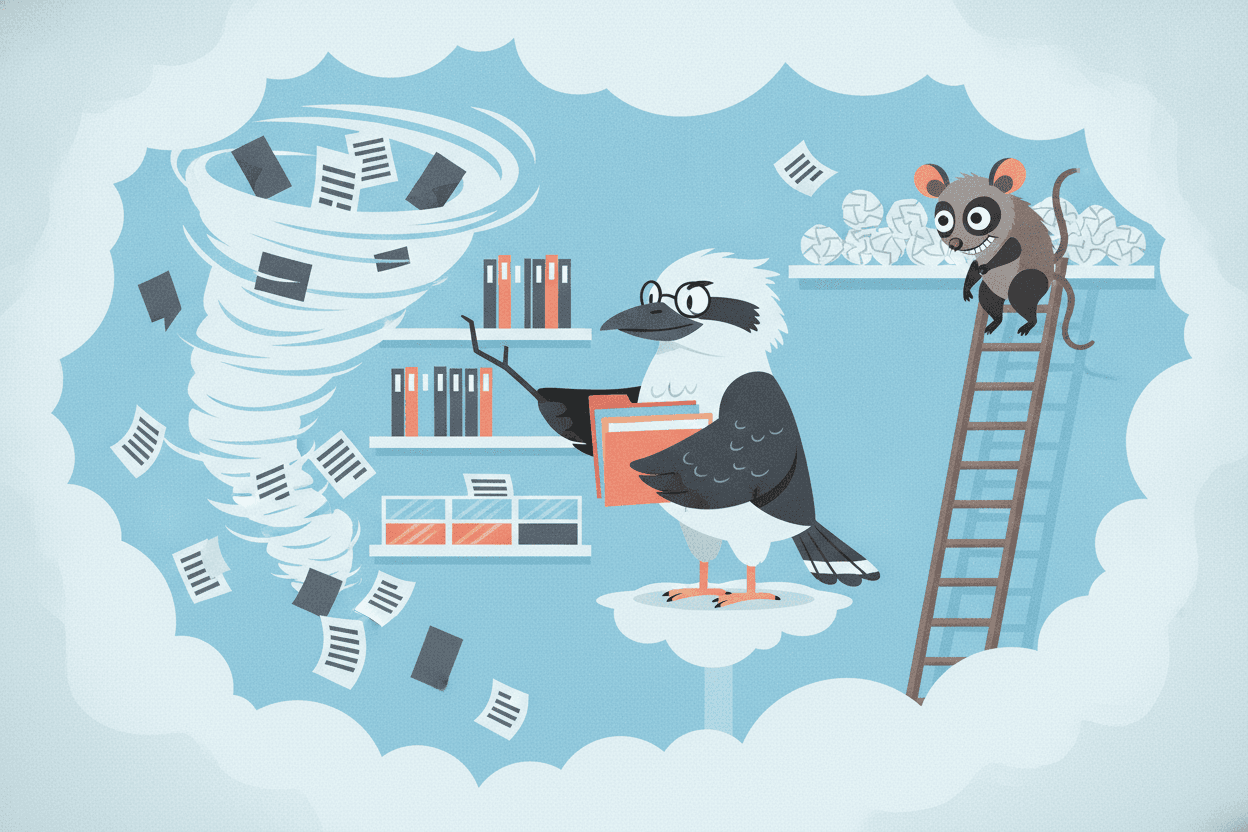
Somewhere in your company's shared drive, right now, there is a file called Report_FINAL_v2_ACTUAL-final(3).docx. Near it sits a folder named "New Folder", a folder named "Misc", and two folders for the same client spelled two different ways. Nobody made this happen. Nobody had to. It's simply what shared storage does when several humans save files into it every day without a shared system.
The cost is real and weirdly invisible. McKinsey's classic research on knowledge work found people spend nearly a fifth of the working week searching for and gathering information. Call it a day per person, per week. In a ten-person business, that's roughly a full-time salary spent — not on work — on looking for work. Tidying the shared drive isn't housekeeping. It's hiring back an employee you were already paying.
Why shared drives rot (it isn't laziness)
Understand the mechanism and the fixes stop feeling arbitrary. A folder tree forces every file into exactly one place — but most files genuinely belong to several. Is the Henderson proposal filed under the client, under proposals, or under 2026? All three are correct, so whichever spot one person picks looks wrong to the next person, who creates the folder they expected to find. Now there are two. Multiply by every person, every save, every deadline, and the mess isn't a failure of discipline — it's the default physics of the system.
You can't beat physics with a memo. You beat it with a structure that reduces the number of decisions, names that sort themselves, and a platform doing the memory work. Like so.
Design the structure around the work, not the people
Top level: five to seven folders named for business functions — Clients, Finance, Operations, Marketing, Admin — never for people. "Sarah's stuff" stops making sense the day Sarah goes on leave and becomes archaeology the day she resigns.
Then hold the whole tree to two or three levels deep. Every extra level is another decision at save-time and another guess at find-time, and each guess is a coin-flip you lose half of. Clients → Henderson → Proposals is deep enough for almost any small business. If you're tempted to nest further, that's usually a sign a folder is doing a job a file name should do — a folder holding fewer than about ten files is a name, not a folder.
Names that sort themselves
Three rules cover ninety per cent of it:
- Dates go first, and they're written year-first: 2026-07-07. Files sort into chronological order automatically, forever, with no effort from anyone. Write dates any other way and your file list is shuffled by the alphabet.
- Name for the stranger: "2026-07 Henderson proposal" can be understood by someone hired next year. "Doc1 latest" can't be understood by the person who wrote it, by Friday.
- Ban the word "final". Not as a style preference — because it's a lie the moment revisions arrive, which is always.
The "final" ban works because the platform already solved versioning properly. OneDrive, SharePoint and Google Drive quietly keep the version history of every document — open the file's history and there's each saved iteration, who made it, restorable in a click. One file per document, edited forever, every draft recoverable. FINAL_v2_ACTUAL-final(3) is a hand-cranked, broken re-implementation of a feature you already own.
Permissions: the mess you can't see
Folder sprawl is visible. Sharing sprawl isn't — every "anyone with the link can edit" share created in a hurry is still out there, working, years later, and nobody has a list. The tidy-up rules: set permissions on the five-to-seven top-level folders and let everything inside inherit; share with named people or groups instead of open links; and make "remove access" a standing line on the staff-departure checklist, right next to the laptop.
One more structural trap: team files stored in someone's personal OneDrive or My Drive. It works flawlessly right up until that person leaves, and then it's the resignation story from our guide to choosing business cloud storage. Team work lives in team space — a SharePoint site or a Google shared drive — which the business owns regardless of who comes and goes. On a properly set up Microsoft 365 tenancy this is a few minutes' configuration; the sprawl audit itself is standard fare in a security review, because oversharing isn't just untidy — it's exposure.
Let search do the heavy lifting
Here's the counterintuitive bit: past a point, stop improving the folder taxonomy. Modern search across OneDrive, SharePoint and Drive reads inside documents — full text, not just titles — so a shallow tree with honest file names plus search beats an exquisite six-level filing system every time. Deep taxonomies demand your team recall where things were filed; shallow-plus-search only asks them to recognise the right file in a short list, and human brains are dramatically better at the second. Teach everyone the search box and the "modified by me last week" filter, and watch half the folder anxiety evaporate.
The quarterly declutter
Entropy doesn't stop, so schedule the resistance: each top-level folder gets a named owner, and each owner spends thirty minutes a quarter archiving finished work into an Archive folder sorted by year, deleting duplicates and rehoming strays. Two hours a year per person, and the drive never again needs the fabled Big Cleanup that every business plans and none performs.
It's worth a wry pause on how we arrived here. We invented effectively infinite storage — space for every document your business will produce until the heat death of the universe — and the first thing we did with infinity was fill it with seventeen copies of the same PowerPoint. Nobody deletes anything, because storage is too cheap to bother, and so finding anything gets harder every single day. Abundance was supposed to solve the problem. It, uh… became the problem. The archive folder is how you call a truce.
Frequently asked questions
How many levels of folders should a shared drive have?
Two or three below the top level. Deeper trees multiply save-time decisions and find-time guesses, and adoption collapses — people start dumping files at the top "for now", and for now is forever. Shallow structure plus descriptive names plus search wins.
Should team files live in OneDrive or SharePoint?
Personal working files in OneDrive; anything the team needs in SharePoint (or a Google shared drive). The dividing question is "if I vanished tomorrow, would someone need this?" — if yes, it belongs in team space the business owns, not an individual's account.
How do we stop duplicate files?
Share links, not attachments. Emailing a copy mints a new version the moment someone edits it; a link keeps everyone in the single live document, with the platform's version history as the safety net. Pair that with the quarterly declutter to catch the duplicates that sneak through.
What happens to someone's files when they leave?
On business plans, an administrator transfers their OneDrive or Drive contents to a manager before the account closes — provided offboarding actually includes that step. On personal accounts, the files simply leave with the person. If that sentence worries you, start with our guide to choosing business cloud storage.
Is a messy shared drive a security problem or just an annoyance?
Both. The same chaos that hides files from your team hides your exposure from you: forgotten open links, ex-staff with lingering access, sensitive documents in folders everyone can read. Tidying the drive and tightening security settings are the same project — and a little staff training keeps both from unravelling. Just don't confuse tidy with safe: version history isn't a backup, as we explain in our cloud storage guide.
Local IT and cyber security support across NSW
Chewing IT sets up, restructures and secures shared cloud storage for teams across the Central Coast, Newcastle, Lake Macquarie, Hornsby and the wider Sydney North Shore — SharePoint and Google Drive structures, permissions audits, and the offboarding processes that keep files where they belong. Most work is done remotely with same-day turnaround, with on-site visits from our Wyong office on the Central Coast and our Hornsby office in Sydney.
Is your shared drive costing the team a day a week? Get in touch and we'll help you turn it into something people can actually find things in.